
Few things are more frustrating than a computer that freezes when opening a spreadsheet, takes five minutes to boot up, or spins into an endless loading wheel during a routine task.
When your PC or Mac grinds to a crawl, it rarely happens overnight. Performance bottlenecks usually build up quietly over time. Before you decide your machine is ready for the scrap heap, review these five common reasons for system slowdowns and the steps you can take to resolve them.
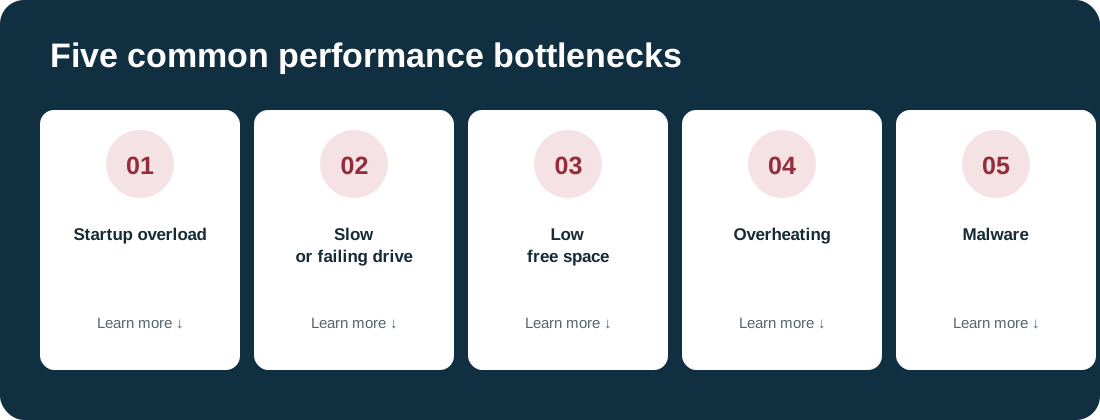
1. Too Many Startup Applications and Background Processes
When you turn on your machine, dozens of programs may launch behind the scenes without your knowledge—cloud sync tools, updater utilities, communication apps, and media players.
The problem: Each background service consumes RAM and CPU resources before you even open your first browser tab.
Tip: Avoid disabling security software, backup tools or unfamiliar system components without understanding their purpose.
2. Failing or Outdated Storage Drives (HDD vs. SSD)
If your computer still uses a mechanical hard disk drive (HDD), everyday tasks may feel noticeably slower than on a solid-state drive (SSD). An aging drive developing errors can also cause long pauses and unresponsive applications.
The problem: Slow read/write speeds, prolonged high disk activity, freezes, or unusual clicking and grinding noises.
The quick fix: If the drive is healthy and compatible with your system, upgrading from an HDD to an SSD can dramatically improve startup and application-loading times. If you suspect drive failure, prioritize protecting your data and seek an assessment before continuing intensive tests or attempting migration.
Warning: Clicking or grinding noises can indicate mechanical failure. Stop unnecessary use and seek data-recovery advice if important files are not backed up.
3. Critical Storage Depletion
Operating systems need free storage for temporary files, updates, caches and virtual memory.
The problem: When the system drive is nearly full, some operations may slow down or fail. There is no universal 85%–90% threshold: the effect depends on the operating system, drive size and workload.
The quick fix: Use Windows Storage Sense or macOS storage settings to review disk usage. Remove unnecessary files and applications, and move large archives or media collections to appropriate external or network storage. Verify backups before deleting or moving important data.
4. Overheating and Thermal Throttling
Dust buildup in cooling vents, fans and heatsinks can prevent heat from escaping. To protect itself, a processor may reduce performance as temperatures rise.
The problem: The computer performs normally when first started but becomes sluggish and noisy after warming up.
The quick fix: Check that vents are unobstructed and fans are operating. Shut the system down before cleaning accessible exterior vents. Internal cleaning and thermal-paste replacement are best handled by a technician when disassembly is required.
Safety: Avoid spinning fans with compressed air or forcing debris deeper into the machine. Follow the device manufacturer's cleaning instructions.
5. Hidden Malware, Adware, or Cryptojackers
Not all malicious software announces itself. Adware, browser hijackers and unauthorized cryptocurrency-mining software can consume computing resources in the background.
The problem: Unexpected high system usage, browser redirects, unusual network activity, or poor performance even when the computer appears idle.
The quick fix: Update your security software and run a full scan with a reputable antivirus product. Where appropriate, use an offline scan. Persistent or serious infections may require professional remediation or a clean operating-system installation after preserving necessary data.
When to Seek Professional Support
If you've reviewed startup programs, freed storage space and scanned for malware but the system remains unresponsive, the cause may involve failing memory, storage hardware, cooling problems, power delivery or other components.
At The Computer Hospital, our technicians can investigate hardware health, temperatures and operating-system issues, then explain practical repair or upgrade options. We can also discuss data backup and migration needs before proceeding with repairs.
What Computer Hospital Can Do for You
Our technicians can evaluate startup performance, drive health, memory usage, cooling, and unwanted software to help identify the real cause of a slowdown. Depending on the findings, we can discuss computer repair, laptop repair, virus removal, SSD or memory upgrades, and data recovery.
Not every slow computer needs replacing. We can help you compare a practical repair or upgrade with the cost of a replacement. See our repair-or-replace guide and drive-failure warning signs for more information.
Computer Hospital · Houston since 1986
Need help with this issue?
Bring us the symptoms and the steps already tried. We can discuss an appropriate evaluation and explain your service options before any paid work begins.